API keys
A personal API key is a full-access credential for everything outside the dashboard the CLI, the HTTP API (sandboxes, Blueprints, and Templates), and the Cloner plugin.
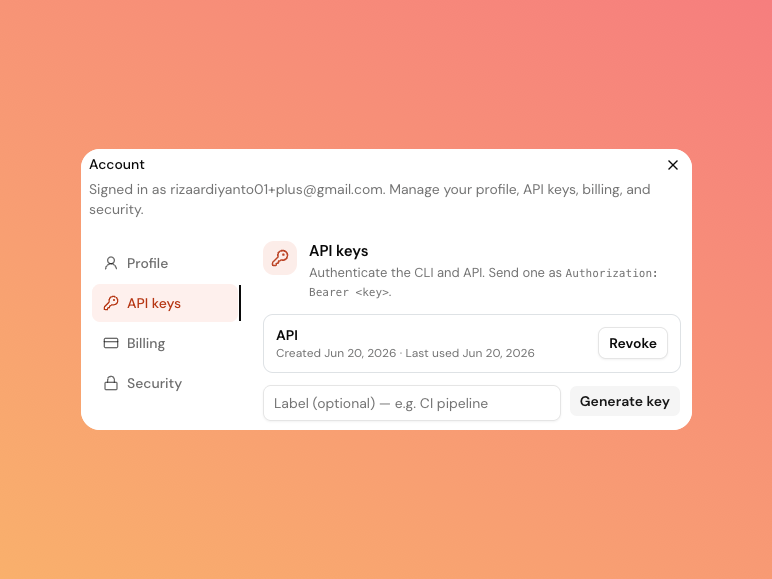
Create a key
- Click your profile in the top-right of the dashboard to open the account menu.
- Choose Account, then the API keys tab.
- Optionally add a label (for example
ci-pipeline), then click Generate key.
The key is shown once, right after you generate it. Copy it immediately for
security, SandyWP can't show it again. If you lose it, just revoke it and generate a new one.
Use a key
Send the key as a bearer token on every request:
Authorization: Bearer swp_xxxxxxxxxxxxxxxxxxxxThe CLI stores and sends the key for you after sandywp auth login. The Cloner plugin asks
you to paste a key when you set it up.
Connecting an MCP client (Claude, or another MCP-capable
agent) is different: it uses its own scoped OAuth connection, not a personal API key. You
approve a connection once in your browser and choose exactly which permissions it gets (for
example "view Blueprints" without "delete sandboxes") a personal API key always has full
access, with no scoping.
Revoke a key
In the API keys tab, click Revoke next to any key. It stops working immediately. The list shows each key's label, when it was created, and when it was last used, so you can spot keys you no longer need.
Good practices
- Use a separate key per tool or environment so you can revoke one without disrupting the others.
- Treat keys like passwords they have full access to your account. Don't commit them to source control.
- Revoke keys you no longer use; check the "last used" date if you're unsure.
Next steps
- CLI reference log in and manage sandboxes, Blueprints, and Templates from your terminal.
- API reference call the endpoints directly.
- Connect an AI agent use scoped MCP access instead of a full-access key.