File Manager
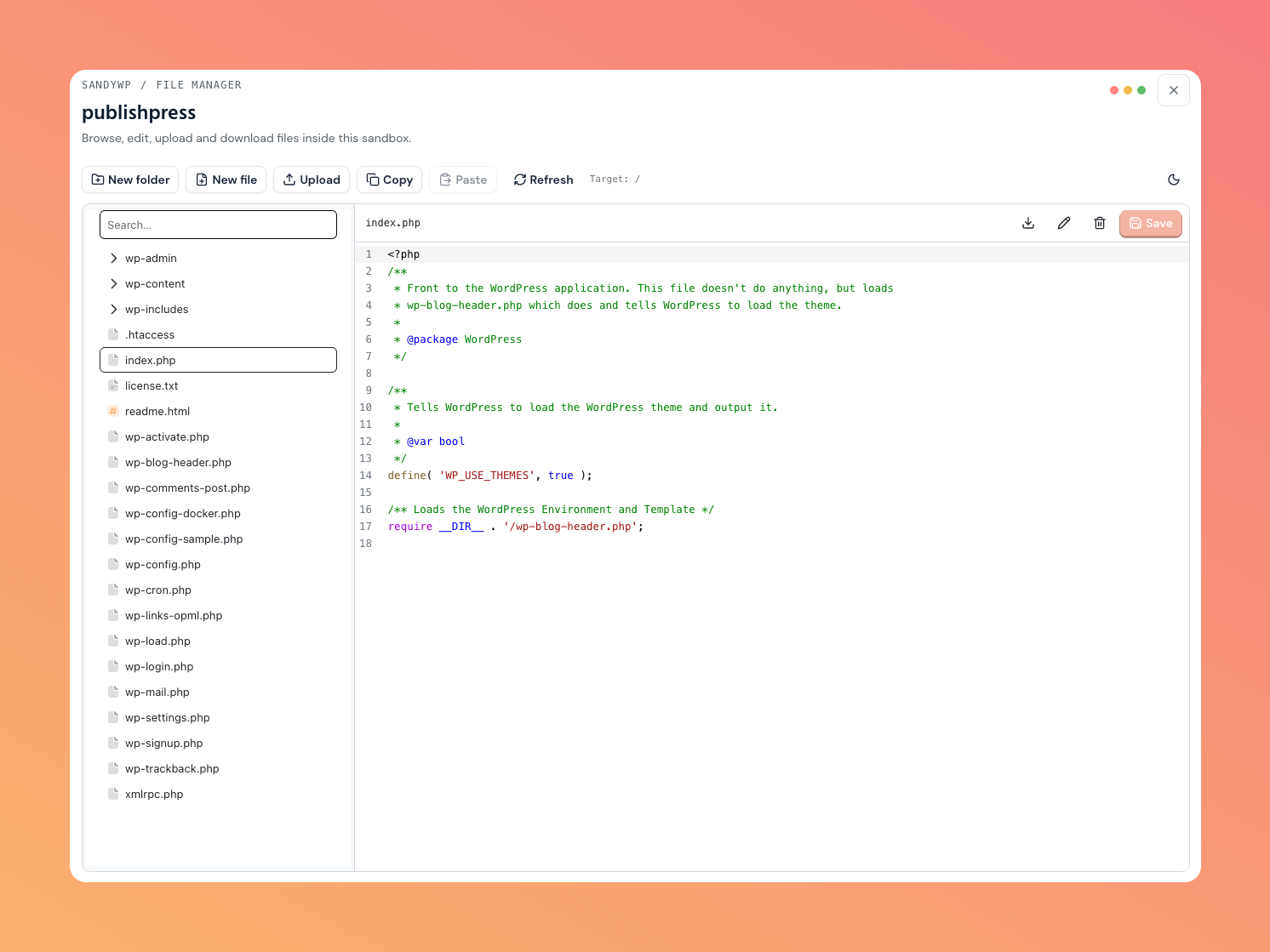
The File Manager lets you browse and edit a sandbox's files right in your browser no SSH client or SFTP setup needed. A file tree on the left, a code editor on the right.
Open it
On any ready sandbox, open the actions menu (the … button) and choose File Manager. The sandbox's own page lists File Manager under Tools in its left sidebar too. It opens over the page you are on.
Browse and edit
- Tree (left): click a folder to expand it; click a file to open it. There's a search box to jump to a path.
- Editor (right): a full code editor with syntax highlighting. Make changes and click Save.
- Theme: toggle the light/dark theme with the sun/moon button; it remembers your choice.
Manage files
The toolbar acts on the Target folder shown in the toolbar and set by your tree selection (a folder selects itself; a file selects its parent folder).
| Action | What it does |
|---|---|
| New folder / New file | Create an empty folder or file in the target folder. |
| Upload | Upload a file into the target folder, with a live progress bar. |
| Copy / Paste | Copy the selected file or folder, then paste it into the target folder. |
| Refresh | Re-read the tree (keeps your expanded folders). |
With a file open in the editor, its header has Download, Rename, and Delete as well.
Read-only files
Some files open in read-only mode:
- Protected files SandyWP's own File Manager and database-helper files can be viewed but not edited. Your
wp-config.phpremains editable. - Binary files images and other non-text files can't be edited in the editor; download them instead.
- Very large files files too big for the editor are download-only.
Notes
- The File Manager works on a
readysandbox; it isn't available while a sandbox is still provisioning. - On sandboxes with a very large number of files, the tree may be truncated a note tells you when that happens.
- Uploads count toward your storage.
Next steps
- Database edit data, not just files.
- Git deployment sync a plugin or theme folder from git instead.